Schedules
A schedule defines how multiple sequences are combined and filtered to generate the final bookable slots. While a sequence defines a single uniform repetition pattern, a schedule merges several sequences into a concrete availability model by applying inclusion and exclusion rules.
This article explains how schedules are constructed from sequences and how filtering is used to generate the final set of valid slots.
Schedules in Minyu
Schedules in Minyu combine multiple sequences to create irregular slot patterns, enabling precise control over availability. By layering sequences as base definitions and filters, schedules allow administrators to define complex booking windows such as:
- Every hour
- Only on weekdays
- Only during office hours
- Excluding vacation periods
For example, a schedule can generate hourly slots limited to weekdays during office hours, ensuring that all bookings align with organizational constraints.
Adding or Modifying a Schedule
To configure schedules:
- Open Bookings → Schedules from the navigation menu.
- The list shows existing schedules. You can edit inline or use the plus icon to add a new schedule.
Example: Generating Slots for Every Hour, Monday–Friday, 08:00–16:00
We will configure a schedule with the following requirements:
- Bookable slots every hour
- Limited to weekdays (Monday–Friday)
- Further restricted to office hours (08:00–16:00)
This is done by creating three sequences and combining them into a single schedule.
Step 1: Defining the Input Sequences
This example uses three sequences:
- Every Hour → Base repetition
- Monday–Friday → Weekday restriction
- Office Hours (08:00–16:00) → Daily time boundary
Only the roles of the sequences matter here. Their exact configuration is covered in the Sequences article.
Step 2: Creating the Schedule
- In Bookings → Schedules, click the plus icon to create a new schedule.
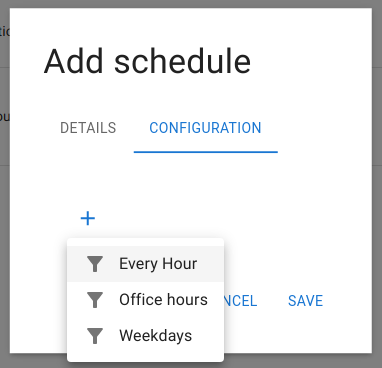
- Assign Every Hour as the initial sequence by clicking the plus icon under the sequence configuration.
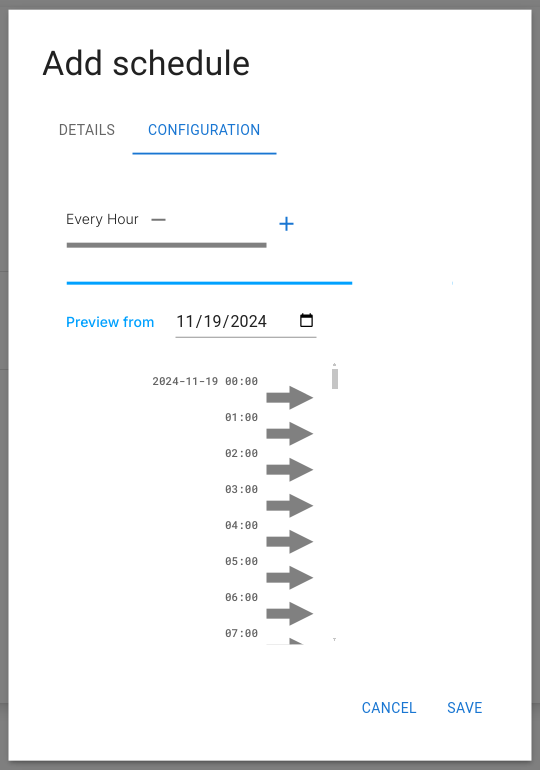
Once the initial sequence is added, a preview section becomes visible. The preview shows slots produced by the base sequence as arrows. These slots will be refined by additional filter sequences.
Filtering with Additional Sequences
With the initial sequence defined, we now add Monday–Friday and Office Hours as filter sequences.
Adding the Monday–Friday Sequence as a Filter
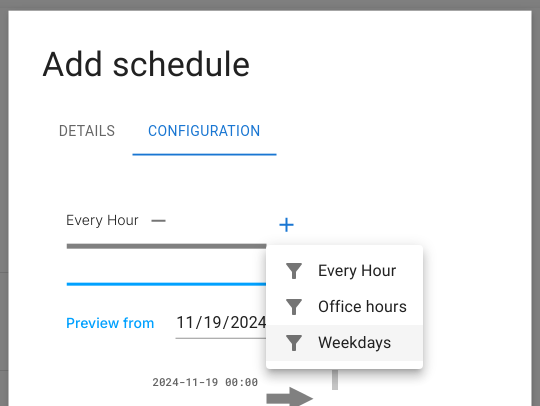
- Click the plus icon to add another sequence as a filter.
-
Once added, two filter modes appear beneath the sequence:
-
Any → Allows base slots to pass if they match any selected temporal relation against the filter sequence
- None → Blocks slots that match any selected temporal relation
Filter Modes: Any vs None
Each filter sequence supports two complementary filter modes that control how base slots are accepted or rejected when compared against the filter sequence using temporal relations.
A base slot is always evaluated against all rows produced by the filter sequence. Because multiple filter rows may exist for the same filter (for example, many vacation periods or multiple exception windows), the system must be able to both include based on some matches and exclude based on other matches. This is the reason the filter is split into two independent modes.
Any Allows a base slot to pass if it matches at least one of the selected temporal relations when compared to any row in the filter sequence. This is the normal inclusion mode and is used to keep slots that fall within an allowed time window (for example, slots that are within office hours).
None Blocks a base slot if it matches any of the selected temporal relations when compared to any row in the filter sequence. This is an exclusion mode and is used to remove slots that fall within a forbidden time window (for example, slots that overlap a vacation period).
In practice:
- Any defines what is allowed
- None defines what is explicitly forbidden
Both filters are evaluated for every base slot. A slot is only kept if it:
- Matches the Any filter (if configured), and
- Does not match the None filter.
This dual-mode design makes it possible to express cases where a slot should be allowed by one period while being explicitly rejected by another..
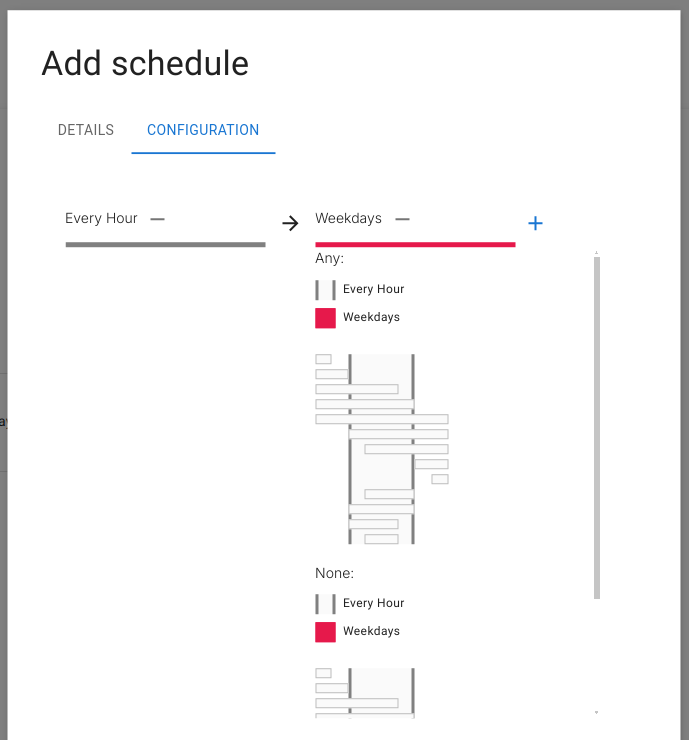
Each slot produced by the base sequence is compared against the weekday sequence using temporal relations. A slot only passes if it satisfies the selected relations.
Previewing the Weekday Filter
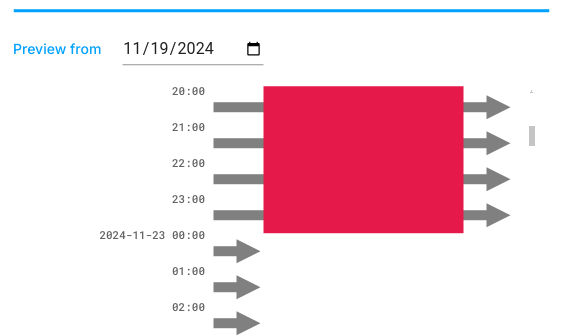
In the view below:
- Base slots appear as horizontal arrows
- The weekday sequence appears as a red block
- The red block ends at 2024-11-23, which corresponds to midnight on Saturday
Only hourly slots that fall within the red block are allowed to pass.
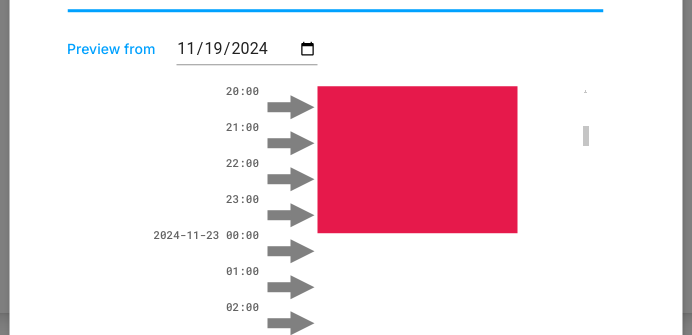
The configured filter allows only slots that are within the weekday block:
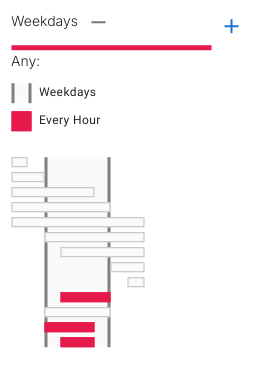
After applying the filter, the preview shows arrows successfully passing through the red block:
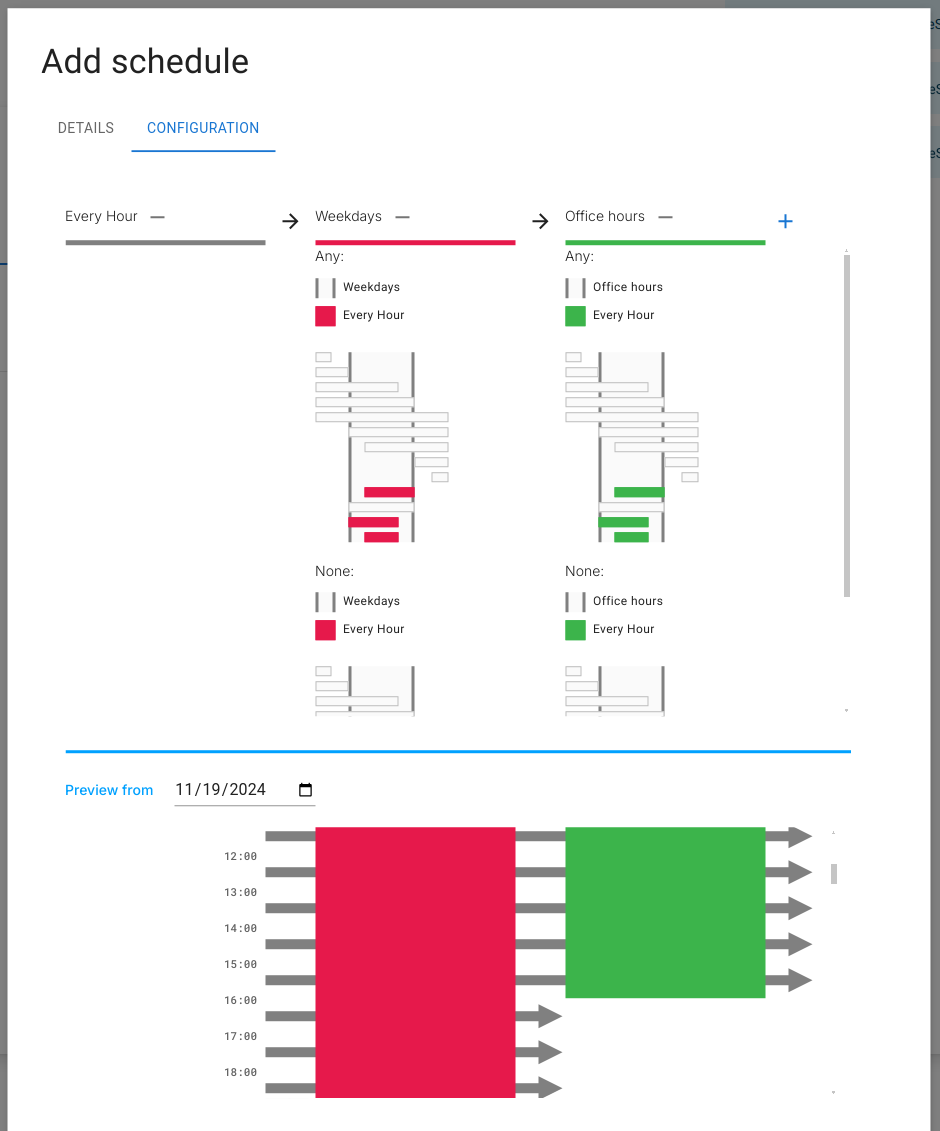
Adding the Office Hours Sequence as a Filter
The office-hours filter is added in the same way.
The green block represents office hours. Only slots that fall within this block are allowed through, even if they already pass the weekday filter.

After configuration, only valid weekday office-hour slots remain:
Summary of Schedules
Schedules in Minyu generate final bookable slots by combining and filtering sequences. Only slots that pass every filter remain in the final result.
- Initial Sequence: Defines the base repetition
- Filter Sequences: Restrict or refine the base slots
- Temporal Relations: Used internally to compare slots during filtering
- Visual Preview: Shows how slots are progressively reduced at each filter stage
By the end of the configuration process, the remaining slots represent the exact availability window defined by the schedule.