Interaction model and workflow
Minyu provides a browser-based user interface for both desktop and mobile clients, supporting current versions of Chrome, Safari, and Edge. The system exposes the same logical model across devices, but with interaction patterns optimized for the operational context of each form factor.
The desktop interface is designed for configuration-heavy and analytical workloads, while the mobile interface is optimized for fast access to individual records and lightweight updates. Both clients are intended for continuous, professional use with a strong emphasis on minimizing navigation overhead and preserving working context.
State and continuity
Minyu persists the full client-side workspace state across sessions. This includes open views, snap-window layouts, window sizes, and active filters. When a user reconnects, the UI restores the exact working context from the previous session.
This behavior is critical for complex workflows where users operate multiple parallel views across tables, relations, and audit data. Layout persistence eliminates the need to manually reconstruct analytical setups and reduces repetitive navigation.
Desktop interface
Layout
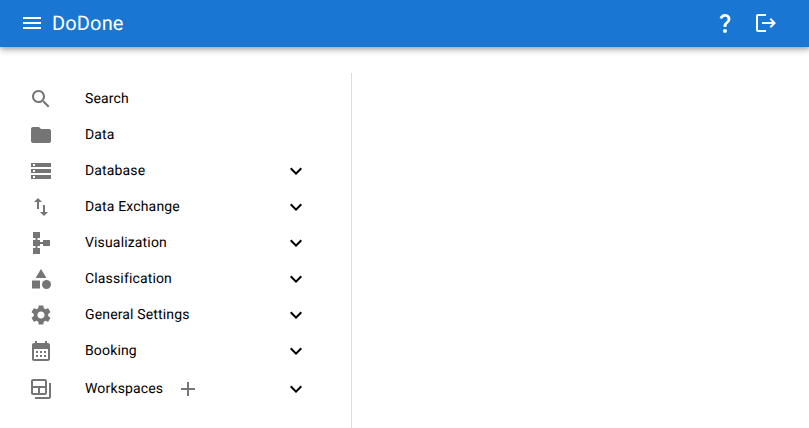
The desktop UI is split into two primary regions:
- The left-hand menu, which provides access to all registered views such as tables, relations, classifications, audits, and visualization modules.
- The window manager, which hosts all active views.
The menu supports collapse and expansion to maximize usable screen space.
Administrative views—such as schema configuration, relation design, and rule definition—are only visible to system administrators. System users are restricted to operational views only.
Snap window manager
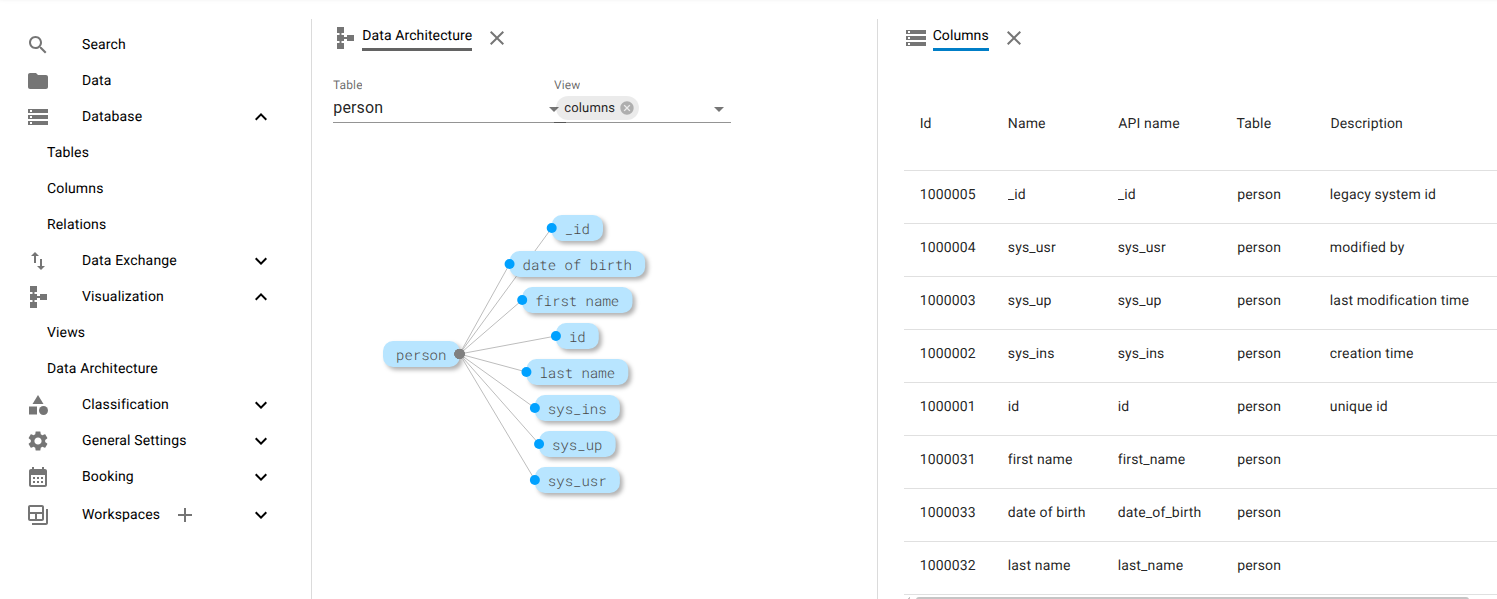
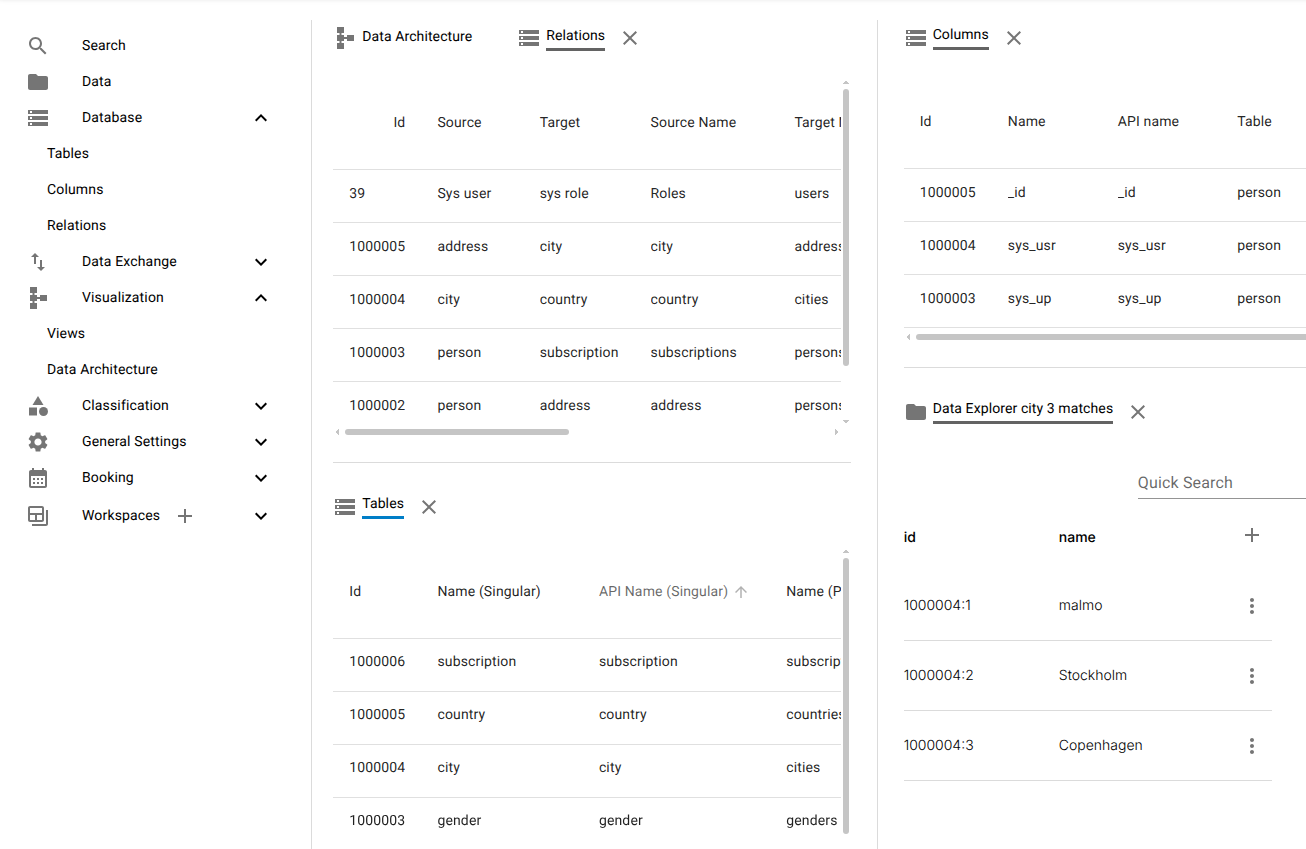
Minyu uses a snap-based window manager that allows arbitrary placement, resizing, and grouping of views. Windows can be:
- Arranged side by side
- Stacked into tab groups
- Expanded to full screen
- Reduced to narrow reference panels
Layouts are persisted across sessions, enabling stable multi-view analysis workflows such as cross-table comparison, rule verification, and audit inspection.
Drag and drop
All horizontal and vertical dividers are dynamically resizable through direct manipulation. Tabs and menu entries can be repositioned through drag-and-drop to reorganize the workspace dynamically.
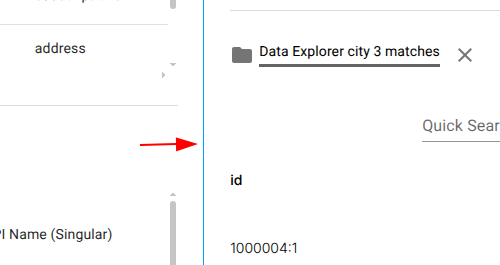
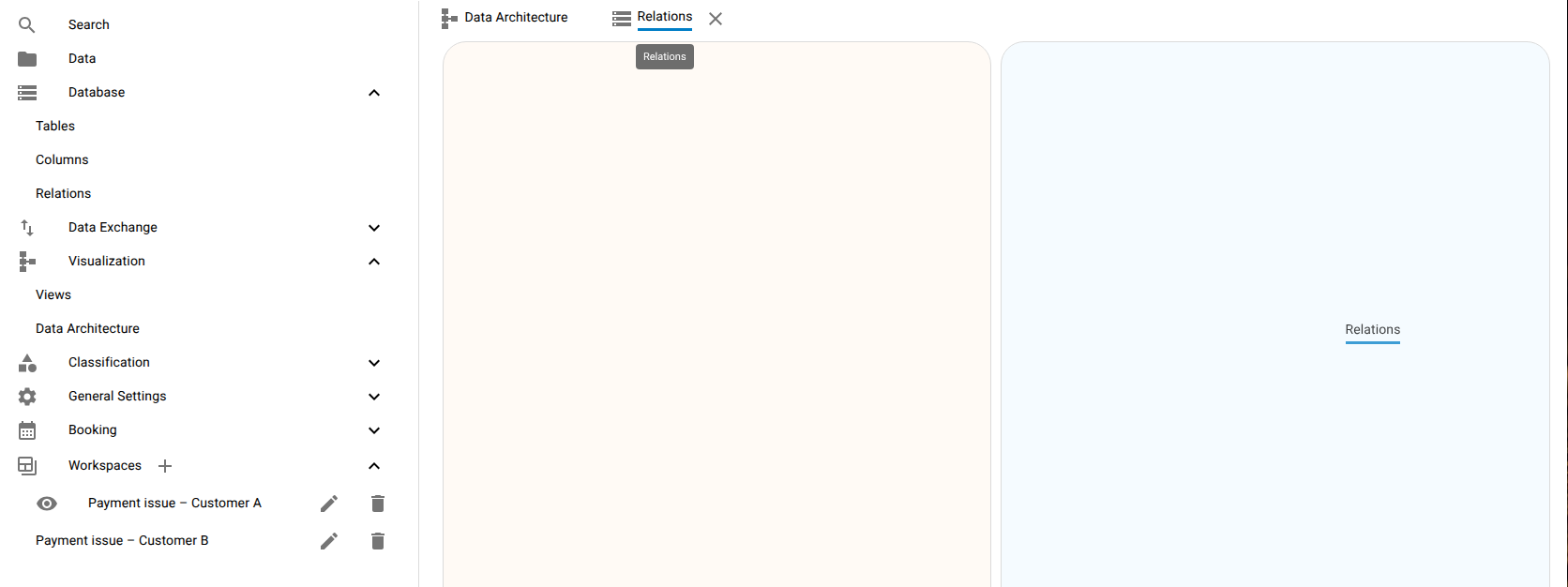
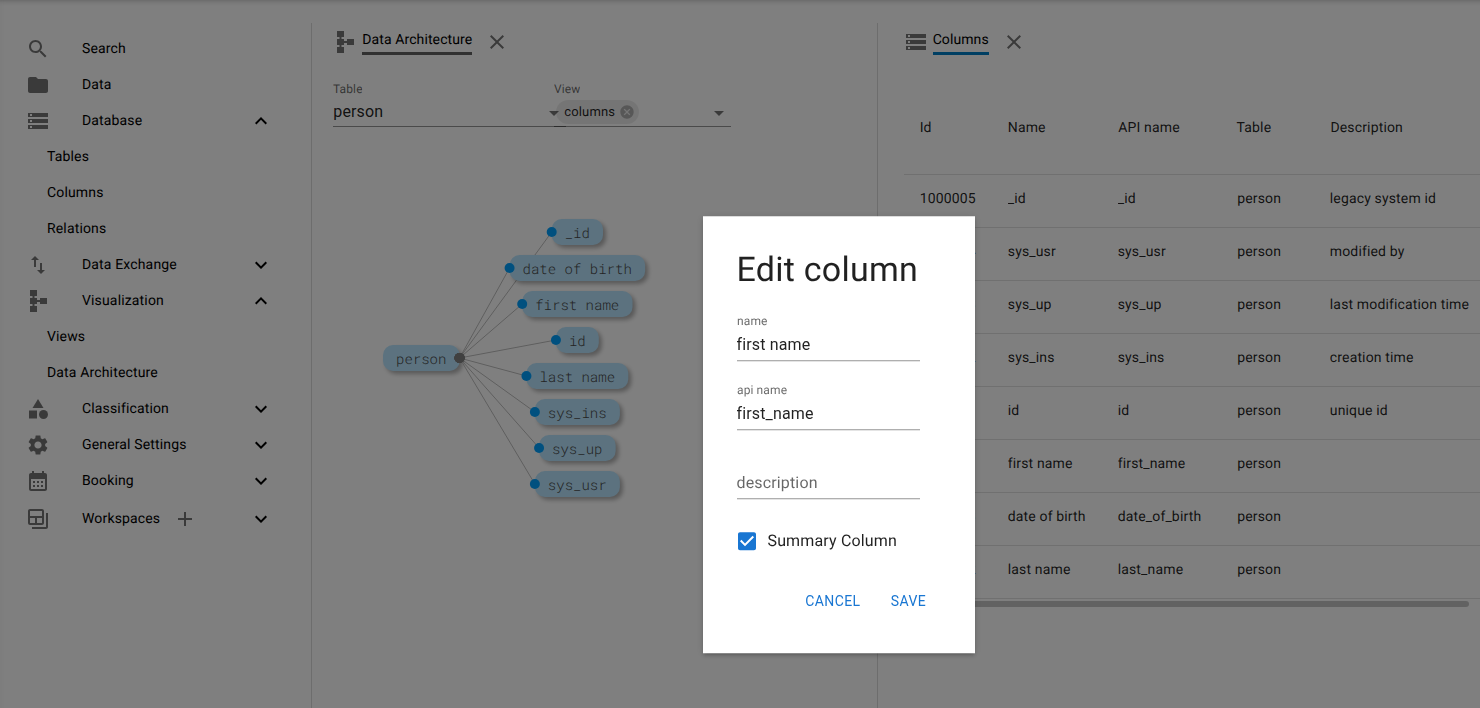
CRUD operations are executed through modal editors layered on top of the workspace. This preserves full navigational context while enforcing task-level focus.
Tabs
Related views can be grouped into tab stacks, allowing multiple datasets to share the same screen region. This is commonly used for:
- Comparing related entities
- Switching between filtered result sets
- Alternating between configuration and preview views
Workspaces
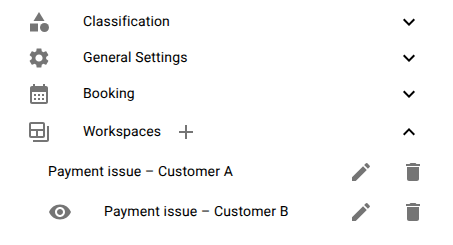
The desktop client supports multiple isolated workspaces, each with its own independent snap-layout state. This allows parallel investigation of unrelated issues without context bleed.
For example, two separate customer investigations can be kept fully isolated, each with its own tables, filters, and open relations.
Mobile interface
The mobile client is optimized for high-speed access to individual records and relations with minimal UI depth. It deliberately excludes all configuration and administrative tooling.
It is intended for operational use cases such as:
- Lookups
- Status checks
- Lightweight record updates
- Fast navigation across relations
Layout
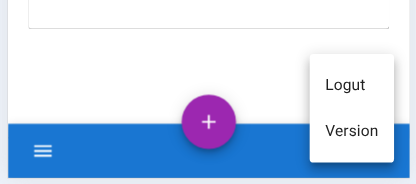
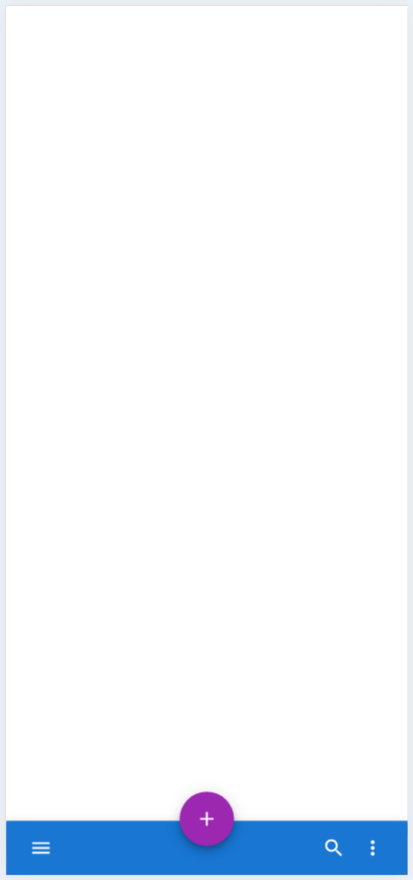
The mobile layout consists of:
- A primary content area showing the active view
-
A bottom navigation bar containing:
-
Menu access
- Global search
- Central Add action
- Settings
Navigation and history
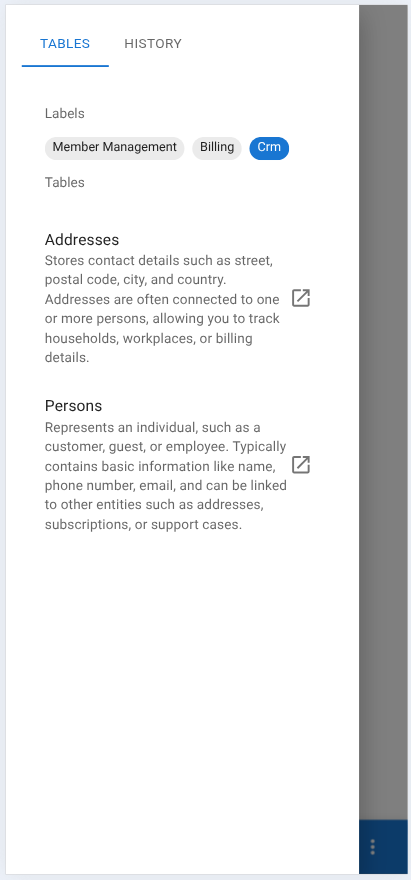
The mobile menu exposes two navigation modes:
- Tables – entity-based navigation, grouped by configurable table categories
- History – a recency-based list of previously opened records
This allows both structural navigation and fast return to in-progress work.
Data navigator
The Mobile Data Navigator is the primary operational view. It provides:
- Column-level filtering
- Dynamic column visibility
- Inline relation expansion
- Contextual edit access
Relations can be navigated transitively, enabling graph-style traversal through the data model.
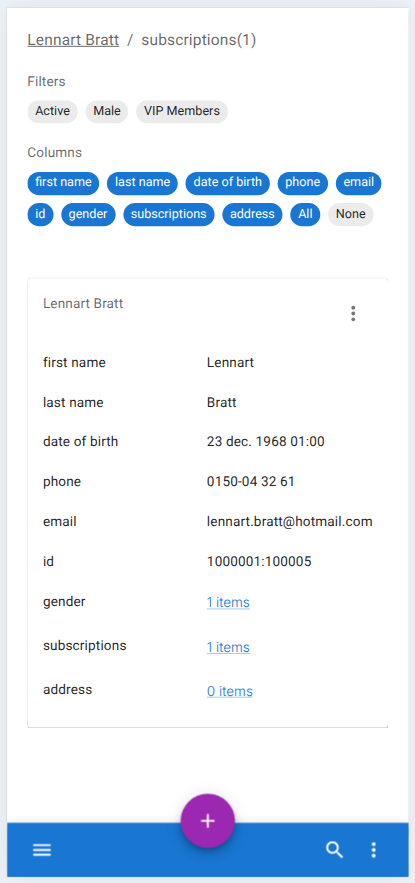
All records can be edited through contextual actions directly anchored to the visible data.

Search
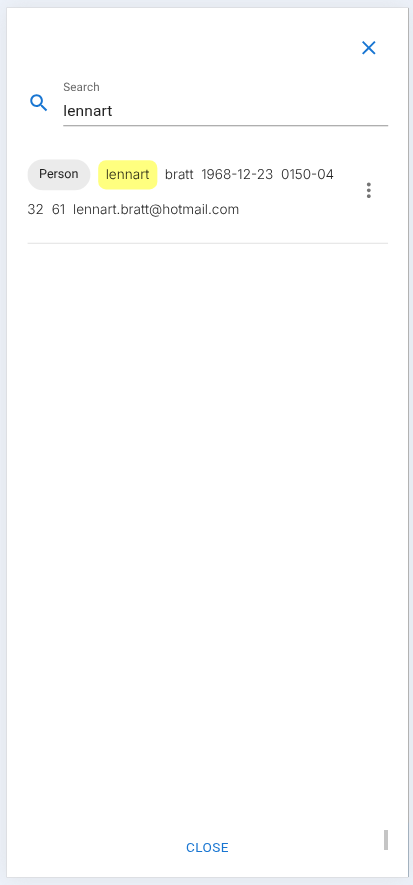
The search interface performs global, cross-table search using identifying attributes such as names, emails, and reference numbers. Results are ranked and rendered with key fields highlighted.
This allows direct targeting of records without prior knowledge of table structure.
Adding new data
The central Add button exposes a list of entity types available for direct creation. This list is controlled by schema-level configuration and determines which tables are exposed for mobile-side inserts.

Data entry is handled through modal editors consistent with the desktop interaction model.

Settings
The settings menu exposes global session-level actions such as logout.